

A Google Shopping feed audit checks whether your Merchant Center product data matches what shoppers see on your website. Before increasing Shopping ad spend, review feed titles, product identifiers, prices, stock, shipping details, images and landing pages. This checklist covers twelve practical checks and how to document problems.
Visual guide: the Merchant Center pre-campaign check
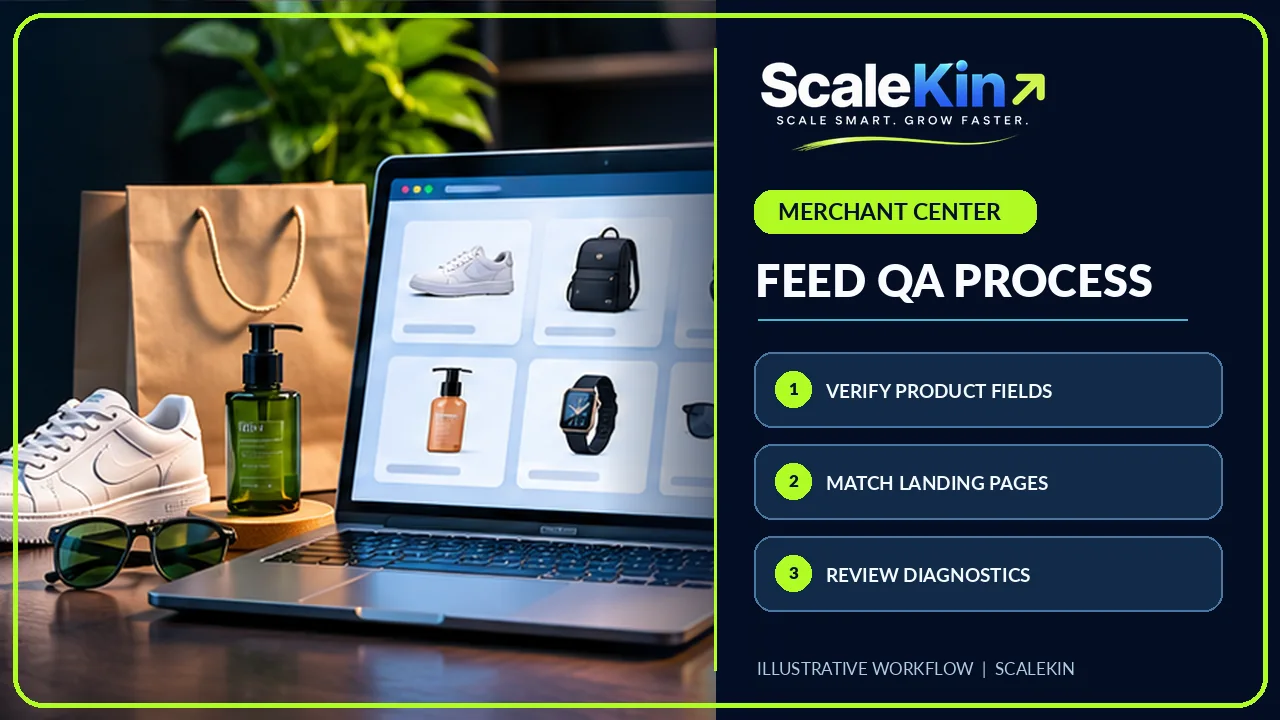
The most useful Merchant Center audit follows the product from its source feed to the landing page. Verify the account, check product data against what shoppers can actually buy, review merchant policies and test conversions before increasing Shopping ad spend.
1. Confirm the account and website really belong together
Before changing a feed, check that the Merchant Center account is linked to the right business and website. Confirm who has administrator access, who maintains the product catalog and which system sends updates. A store may be using an ecommerce app, an XML feed and a supplemental data source at the same time. If several sources modify the same products, you need to understand which one wins before fixing anything.
Check the account’s business information and website claim or verification status. Then open a few product links from the feed. They should land on the actual products, not on an expired promotion or a generic collection page. Make a short inventory of feed sources, target countries, languages and the systems responsible for prices and inventory. This will save time when you later see a mismatch in the diagnostics.
2. Read diagnostics before editing every product
Start with the products Merchant Center identifies as disapproved, limited or missing required information. Export the affected items and group issues by the field or system that causes them. A missing identifier on one group of products is a different problem from a stale price affecting the whole catalog. Work through the highest-impact problem first, then re-check the data source and processing result.
Do not assume every warning prevents a product from appearing. Review the exact message and affected country or program. Keep a before-and-after record so you know which change resolved which warning. If a feed keeps reverting to incorrect values after you update products manually, fix the upstream source. Editing the same field in Merchant Center repeatedly is not a sustainable solution.
3. Match product titles and descriptions to the item
A product title should help a shopper recognise exactly what is offered. Include the relevant product type, brand and distinguishing characteristics when accurate and useful. Avoid stuffing unrelated search terms or promotional claims into the title. A description should explain material, specifications, dimensions, intended use or compatibility as appropriate. It should not claim features the product does not have.
Look at how a shopper sees the item in a listing and on the actual website. If the product is sold as a bundle, the title and page should make the bundle clear. If the store ships a different variant than the ad suggests, the traffic may be wasted even when clicks look healthy. Merchant Center product data is a representation of the offer; it should not become a separate marketing story disconnected from the storefront.
4. Check price, currency and sale information
Price problems are common when a store uses promotions, multiple currencies or third-party apps. Compare the price submitted to Merchant Center with the product landing page and the price a customer sees after choosing the relevant variant. Check whether sale dates, tax display and currency settings match the country in which the product is offered. A screenshot taken at the wrong stage of checkout may hide the issue, so follow the actual shopper journey.
Google’s product data specification requires accurate price and availability information. Changes in promotions should reach the feed promptly. If an automatic price update or structured-data source conflicts with the feed, find the source rather than repeatedly submitting a manual correction.
5. Keep availability synchronized with stock
Check what the feed says about in-stock, out-of-stock, preorder and backorder items, and compare it with the website. A product should not attract clicks for immediate shipping if it is unavailable. Stores with fast-changing inventory need a dependable synchronization process. Test at least one product for every stock state the store uses, including variants that may have different availability.
Where shipping times or preorder dates are relevant, communicate them plainly. Do not rely on a small message hidden below the add-to-cart button. Your goal is accurate expectations and fewer customer complaints, not merely clearing a technical warning. If availability changes frequently, assess whether the ecommerce integration can send updates reliably without creating duplicate product entries.
6. Check identifiers and product grouping
Product identifiers help systems understand which real-world item is being offered. Review fields such as brand, GTIN or MPN where applicable. Do not invent a GTIN to satisfy a warning. Some handmade or custom products legitimately have different identifier situations. Follow the requirements for the item and market rather than applying one blanket rule to the whole catalog.
Products with sizes or colours also need accurate grouping. Check that each variant has its own appropriate attributes and leads shoppers to the expected option. Incorrect grouping can create duplicate-looking listings or confusing product detail. When a product has a different material or size, the feed should represent that difference consistently with the store.
7. Use genuine, clear product photographs
A strong product image is clear, well lit and accurately shows what the customer will receive. Check the crop on mobile, important details and whether the product occupies enough of the image. Avoid text overlays that mislead shoppers about discounts or product characteristics. Lifestyle images can help explain use, but they should still represent the exact item. A beautiful image of a different product creates a trust problem.
Google’s image best practices recommend clear product focus and supporting images where useful. Compress the website’s copy of each image to avoid slowing the page, but keep feed images large and sharp enough to meet Merchant Center requirements. The same image workflow should support both discovery and conversion.
8. Review shipping and returns before increasing traffic
A listing does not end when someone clicks. Customers often decide whether to buy after seeing shipping costs, delivery windows and return conditions. Check that these policies are accurate, visible and consistent with what happens at checkout. If the business ships only to selected locations, the feed and shipping configuration should not imply wider service. Where taxes or duties may affect a purchase, explain those costs as required.
Test the checkout with a realistic delivery address in the target market. Do not guess a free-shipping threshold or reuse last year’s return policy. An incorrect policy may create disappointed customers even when Merchant Center approves the item. Keep a named owner for policy changes, since shipping rates can change without the SEO team knowing.
9. Compare structured data with your feed
Open a representative product page and inspect its Product and Offer structured data. Check the name, price, currency, availability, images and canonical URL. The page’s structured data should reflect what the buyer actually sees. If a theme and an SEO app both output Product markup, review the combined result instead of adding a third block. Duplicate or contradictory markup can make debugging harder.
Google’s merchant listing documentation explains eligibility and validation. Passing a structured-data test does not guarantee a rich result or an approved listing. It is one useful signal within a broader product data system. Record the examples you test so a developer can reproduce them after the next theme update.
10. Check landing pages on desktop and mobile
Open several product links from the actual feed on a phone. Confirm that the right item loads, the main photo appears without unnecessary delay, and a visitor can select options and add to cart. Check for cookie popups covering purchase buttons, currency switching after load and out-of-stock messages that contradict the feed. Loading speed matters, but a fast page with a broken product selector is still unusable.
Review product page clarity: specifications, returns, delivery information and an appropriate purchase call to action. If a page links to an unavailable product or redirects to a homepage, fix the landing experience before spending more on campaigns. You can use a Merchant Center audit to identify feed and page mismatches, then plan product-level fixes separately.
11. Make sure campaign measurement is useful
Shopping campaign reports may show impressions, clicks and conversions, but they cannot explain all business outcomes on their own. Define which conversion matters: completed purchase, qualified enquiry or another action appropriate to the store. Confirm that a real transaction is recorded once, with the right value and currency. Test consent handling and avoid sending sensitive customer details to analytics services.
If the account is newly set up, do not change bidding strategies every day based on small samples. Review product group performance alongside inventory, margin and order status. An expensive product with a low conversion count might still be commercially useful, while a popular low-margin item may produce disappointing returns. Decisions should follow the store’s real objectives.
12. Turn the audit into an action plan
Finish with a list that separates account errors, feed corrections, landing-page issues and measurement problems. For each task, record the affected product IDs, owner, priority and verification method. A clear example is ‘update the inventory sync, then confirm three representative items show matching availability in feed and storefront.’ That is more useful than simply writing ‘fix inventory’.
Check outcomes after the data source processes the changes, and keep a record of issues that require a further review or appeal. If the catalog itself needs better titles and descriptions, a focused Shopify product SEO package may fit. If campaigns also need reviewing, see Google Ads management. These are different scopes; make sure you know which problem you’re paying to solve.
How to document a Google Shopping feed audit
Save a small sample of affected products before changing the entire feed. For each issue, include the item ID, feed value, landing-page value, Merchant Center diagnostic or policy message, likely cause, proposed fix and retest result. This helps separate inaccurate source data from formatting or sync problems.
- Price or availability mismatch: compare the feed with the live product page and checkout conditions.
- Missing product identifiers: verify brand, GTIN or MPN where applicable; do not invent identifiers.
- Disapproved products: read the specific Merchant Center reason before changing titles or images.
- Shopping campaign readiness: verify landing-page experience and conversion tracking, not only feed approval.
Stores with broader organic search problems may also need a Shopify SEO Audit, which addresses product and collection search visibility. A Merchant Center feed audit and a Shopify SEO audit solve overlapping but different problems.
Quick questions before the next campaign
Does Merchant Center approval mean the feed is perfect? No. Product data and landing pages require ongoing checks. Should I add keywords to every title? Include useful identifying terms, not a keyword list. Will structured data automatically fix disapprovals? Not by itself. Confirm the exact issue in Merchant Center and correct the underlying source. What is the most useful first step? Review ten important items and compare their feed values, product pages, stock, price and checkout experience.
Author and sources
Written for ScaleKin by Mohammed Tarikul Islam Shohan, a digital marketing and SEO specialist with a Top Rated Upwork profile. This is a practical audit method based on published Google guidance, not a claim about a specific store’s performance.